Monday, May 23, 2011

Create water droplet using layer style

1. Download a leaf image from google.

2. Open that leaf image in photoshop.

3. Create a new layer.

4. Select elliptical marquee tool and draw a circle.

5. Select gradient tool and apply default gradient color (black-white).

6. Deselect the circle.

7. Select the overlay option in layer palette.

8. Select the leaf layer and go to blending options.

9. Drop shadow

  • Select the drop shadow angle.
  • Distance for the drop shadow.

10. Inner shadow

  • Select the angle for shadow.
  • Distance and size for the shadow.

11. Create a new layer above the leaf layer.

12. Select brush tool and reduce the diameter to 7.

13. Select white as the foreground color and place a dot on the top left corner of the droplet for its realistic look.

14. Duplicate the droplet and the dot layer.

15. Select the leaf layer and go to filter > Liquify.

16. Select the brush tool and deform the circle.

17. It create an another droplet on the leaf.

Thursday, May 19, 2011

Tools in Photoshop

Move tool (V) – used for moving an artwork.

Selection tool (M)The 4 types of marquee tools are

  • Rectangular marquee
  • Elliptical marquee
  • Single row horizontal
  • Single row vertical marquee tools. Clicking Shift+M switch between these selection tools.

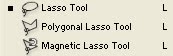
Lasso tool (L) Select the precise area of an mage by tracing the outline. Lasso tool includes

  • Lasso tool – free and selection tool
  • Polygonal lasso tool – select with the straight edges
  • Magnetic lasso tool – select the edges of the image

Magic wand (W)

  • Magic wand tool make selection based upon the color
  • Quick selection tool paint a election using brush tip.

Crop tool (C)- crop an image


Slice tool (K)

  • slice an image into small sections which are used for creating a website
  • slice select tool used to section of a slice in an image

Retouching tools (J)

  • Healing brush tool used to correct imperfections like blemishes, scratches, etc and make them disappear into the surrounding image. It works on the basis of source point or selection and blend the sample seamlessly.
  • Spot healing brush tool do the same work as healing brush but it does not need to define a source point or make a selection.
  • Patch tool repair a selected area with the pixel from another area or pattern.
  • Red eye tool used to repair red eye error caused due to the electronic flash.

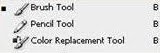
Painting tools (B)

  • Brush tool & pencil tool paint a line with any thickness which has been specified in the option bar.
  • Color replacement tool replace specific color in the image without losing any detail of it.

Gradient & Bucket tool (G)

  • Gradient tool create a gradual blend between multiple colors
  • Paint bucket fills the adjacent colored area with the foreground color.

Blur, sharpen & smudge tool (R)

  • Blur tool smoothen the pixel, smearing them across the image.
  • Sharpen tool focus on soft edges and increase the clarity of the image
  • Smudge tool gives an effect of finger painting. It spread and mix the content of an image.

Dodge, burn & sponge tool (D)

  • Dodge tool lighten image area.
  • Burn tool darkens the image area.
  • Sponge tool saturate or desaturates the image where you paint

Pen tool (P)

  • Pen tool create straight or smooth flowing curves in path or shapes.
  • Freeform pen tool used to draw as if we draw with a pencil on paper
  • Add and delete anchor point used to add and delete an anchor point respectively from a path/ shape.
  • Convert anchor point used to convert a smooth edge on a path/shape to sharp edge and vice versa.

Type tool (T)

  • Horizontal & vertical type tool type the text horizontally/ vertically respectively.
  • Horizontal & vertical type mask tool type the text horizontally/ vertically respectively and mask an image.

Path & direct selection tool (A)

  • Path selection tool select an entire path/ shape.
  • Direct selection tool select a single anchor point/ segment in a path/ shape.

Shape tool (U)

The 6 shape tools includes

  • Rectangle tool
  • Rounded rectangle tool
  • Ellipse tool
  • Polygon tool
  • Line tool
  • Custom tool

Notes & audio annotation tool (N)

  • Notes tool attach your notes to the image.
  • Audio annotation tool attach voice notes to the image.

Eye dropper & color sampler tool (I)

  • Eye dropper tool samples color from a picture to a new foreground and background color
  • Color sampler tool shows the color value of defined spots in an image. 4 color values are seen in a single sampler.
  • Ruler tool measure the distance between 2 points in an image.
  • Count tool count the objects in an image.

Zoom tool (Z) magnify the document


Hand tool (H) used to navigate over the image

Monday, May 16, 2011

Window


Arrange – arrange multiple documents opened in photoshop

  • Window > Arrange >
    • Cascade – arrange the windows as stack and cascade from top left to bottom right of the screen
    • Tile vertically/ horizontally – arrange windows vertically/ horizontally with edge to edge
    • Match zoom and location – all windows opened in the software get zoomed to the same percentage.

Action is a set of commands when applied to an artwork is recorded and can be used again to save the time and keystrokes.

  • Window > Action (Ctrl+F9)
  • Action palette includes record and stop button.
  • Create a new document with an image.
  • Open action palette and start recording.
  • Resize the image and apply filter effects on the image and stop the recording.
  • This action can be applied on any image by clicking the play button in action palette.

Animation – show/ hide animation palette. It used to create gif animation in photoshop.

Brushes – show/ hide brushes palette (F5).

Color - show/ hide color palette.

Histogram – show/ hide histogram palette which show the graph of tonal range(RGB) of an image.

History – show/ hide history palette which help in viewing the value of rgb at the point where we move the cursor.

Layers – show/hide layer palette (F7)

Measurement log – show the records of measurement taken in the document.

Navigator – show/hide navigator palette which help in changing the view quickly.

Option bar – it show the option available for the particular tool which has been currently selected. It appears below at the top of the screen below the menu bar.

Friday, May 6, 2011

View


Gamut warning – shows the colors which cannot be printed. Grey is a good color which is “out of gamut”. Gamut warning appears mostly in bright area of the image.

  • View > Gamut warning (Ctrl+Shift+Y)

Zoom in – magnify the image (Ctrl+). (Ctrl -) to zoom out.

  • View > Zoom in (Ctrl+)
  • View > Zoom out (Ctrl -)

Fit on screen – it scale the image and make it fit to the window size.

  • View > Fit on screen (Ctrl+0)

Actual pixel – scale the document to its original size.

  • View > Actual pixels (Ctrl+Alt+0)

Print size – same as actual pixel

  • View > Print size

Screen mode – modify the screen mode options to view the image on entire screen. There are 4 types of screen mode. They are

  • Standard – default mode in photoshop with menu bar at the top and scroll bar on the side.
  • Maximized – fills all available space between the docks
  • Full screen mode with menu bar – shows the selected document in full screen with menu bar on the top and has no title bar.
  • Full screen mode – show only the document with tool box and no menu or title bar.

Show extras – non printing objects like grid, guide line, slices, selection edges, etc can be hidden or shown to select and move.

  • View > Show extra

Rulers – help in positioning the images or objects. It is visible at the top and left side of the document.

  • View > Rulers

Show – show/ hide rulers, layer edges, etc.

  • View > show >
    • Layer edges – shows the edges of the layer which has been selected
    • Rulers – show/hide the rulers
    • Grid – similar as rulers (Ctrl+’)
    • Slice – used in web designing. Enabling this option show/hide the boundary of the slice.
    • All – enable all the above options

Snap to – helps in placing the images accurately

  • View > Snap (Shift+Ctrl+;)

Lock guides – lock the guide line from moving it.

  • View > Lock guide (Alt+Ctrl+;)

Thursday, May 5, 2011

Filters


Filters are used to modify an image like making an image sharpen or blur, modifying its color, shape or form, etc.

Artistic – for painting effect on the image.
Blur – retouch an image and soften the pixel.
Brush stroke – like artistic, give an ink or brush stroke effects.
Distort – bend and wrap an image.
Sketch – give the image a hand-drawn look. It uses foreground and background colors for sketching.
Noise – increase or reduce film grain. Used to create unusual texture and remove dust and scratches in an image.
Pixelate – clump pixels of same color value. Give image a pixelized look.
Render – create lighting, cloud effect, 3d shapes.
Sharpen – sharpen the edges of image.

Monday, May 2, 2011

Select

Select – Separate one or more part of an image. It help in editing, applying filters to the selected area and keep the remaining part to be the same. It include selection of layers, images, path, etc.
  • Select > All – select all pixels in a layer. Selection can be deselected (Ctrl+D) or select > Deselect.

Inverse selection – select a part of an image with any selection tool. Invert the selection using Select > Inverse selection (Ctrl+Shift+I)

All layers – select all layers in a document (Ctrl+Shift+A)

Similar layer – select layers of similar type like layers with test or layers with image.

Color range – refine the selection of a particular color range in an existing selection.

  • Select > Color range > Sample colors.
  • Pick the color to be selected with eye dropper.
  • Increase the fuzziness to increase the range of selection
  • Selection area will be displayed in white, unselected area in black and partially selected area in grey color.

Refine edges – improves the selected edges of an image and help in viewing the image in different background.

  • Radius – increase in radius increase the soft portion around the edge of the image.
  • Contrast – make the soft edges crisp.
  • Smooth – convert uneven edges to smooth.

Modify – modify the selection in an image.

  • Border – select a pixel width in and outside of an existing selection border made in an image. It remove halo effect made around the image.
    • Select > Modify > Border
    • Specify the number of pixel i.e. the width of pixels to be selected in and outside of the selection.
  • Smooth – simplifies the selection
    • Select > Modify > Smooth
  • Expand – increase the selection area from the existing selection.
    • Select > Modify > Expand
    • Specify the number of pixels to be expanded from the selection.
  • Contract – reduce the selection area from the existing selection
    • Select > Modify > Contract
    • Specify the number of pixels to be reduced from the selection

Transform selection – it transforms the selection made around image

  • Select > Transform selection

Save selection – selection made in a layer can be saved in the alpha channel

  • Select > Save selection

Load selection – selected which has been previously saved can be loaded on an image.

  • Select > Load selection

Friday, April 22, 2011

Layers

Layers are like sheets of images arranged one upon the other. It helps you to work efficiently with the images in the layers. The layers are transparent which makes the bottom layer and its images to be visible. The opacity of the layer can be reduced which makes the images in the layer to be transparent.

While creating a new document with white or colored background, the bottommost layer is know as background. No changes like opacity, blending options, etc can be done in it.

Layers - New – Layer
Layer from background
Group
Group from layer
Layer via copy


Layer - create a new layer above the selected layer.

  • Layer > New > Layer(Shift+Ctrl+N)

Layer from background - convert the background of document to a layer which makes it more editable

  • Layer > New > Layer from background

Duplicate – duplicate a group with entire set of layers and images nested in it.

  • Layers > Duplicate group

Delete – remove a layer / group from the document.

  • Layers > Delete > Group (to delete a group)
  • From the dialog box,
    • Select group and contents to delete group with its layers
    • Select group only if want to delete the group folder and not the layers nested in it.

Group properties – can name and code a group folder with color which helps in locating the related layers in the layers palette.

  • Layers > Group properties
  • Layer style – Effects can be applied on a layer using layer style. The effects which have been created newly can be saved in library for future use. Any style applied to a layer can be copied to another layer. To do tat
    • Select a layer to which a style has been applied.
    • Right click and select copy layer style
    • Select the targeted layer to which the style has to be copied
    • Right click and select paste layer style. The style has been copied to the target layer.
Fill layers – fill the layers with solid / gradient color / pattern. It does not affect the layer below them.

New adjustment layer – This layer apply color and tonal adjustment to the images without changing its pixel value. Adjustments are not directly applied on the images so it can be discarded and restore the original image.

  • Layer > New adjustment layer.
  • Adjustments can be re-edited.
  • Paint on the layer mask of the adjustment layer which result in applying the adjustment to a part of the image.
  • Adjustment get applied on all layers below this adjustment layer.

Layer mask – This mask is used to hide/show a portion of the layer with brush /selection tool.

  • Its resolution dependent mask.
  • Layer mask is a grayscale image, area painted with black are hidden and white are visible and layer appear to be transparent with gray shades.
  • Layer > Layer mask

Vector mask – Its resolution independent mask done with shape/ pen tool. Both layer and vector mask appear as a thumbnail at the right side of the layer thumbnail.

  • Layer > Vector Mask > Reveal all.

Clipping Mask - Mask a layer with the content of the layer below it.

  • Layer > Create clipping mask (Alt+Ctrl+G)

Smart Object – Layer which contain images which can be edited without affecting the quality of the image

  • Layer > Smart Object
  • Smart object can be duplicated to several layers. When any changes are done to the object, it get applied on all duplicated layers.
  • Create a new document with an image in it.
  • Select the layer > Layer > Convert to smart object
  • Duplicate the smart object layer
  • Double-click on a smart object layer to edit, a dialog box will open, click ok.
  • The smart object opens in a separate window.
  • Do all changes in it, save and close the window.
  • The changes done in to tat single smart object get applied to all duplicated layers.

A. Convert an image to smart object. B. duplicate the smart object layer. C. edit a single smart object in a new document. D. Changes updated in other duplicated layers

Video layer – import a video / create a new blank video layer in a document

  • Layer > Video layer > New video layer from file (open a video from a file)
  • Layer > Video layer > New blank video layer (create a new blank layer for a video)

Rasterize layer – filters, blending options cannot be applied on vector images in photoshop. These editing can be done only after converting those vectors to flat, raster image.

  • Layer > Rasterize > Select option which includes
    • Type > Rasterize the text layer
    • Shape > Rasterize a shape
    • Vector mask > Rasterize a vector mask layer
    • Smart object > Rasterize a layer with smart object
    • Video > convert a video frame into image layer
    • Layer > Rasterize all vector in the selected layers

Group layer – hold layers under one folder.

  • Select the layers to be group.
  • Layers > Group layers.

Arrange – move the selected layer to top or bottom.

  • Layers > Arrange > Bring to front (Ctrl+Shift+]) – move the selected layer to the top of all layers.
  • Layers > Arrange > Bring forward (Ctrl +]) – move the layer one step above.
  • Layers > Arrange > Bring backward (Ctrl+[) – move the layer one step back.
  • Layers > Arrange > Send to back (Ctrl+Shift+[)- move the layer down of all layers and place it above the background layer.

Merge – after the complete edition of images in photoshop all layers can be merged to single layer which reduce the file size. While merging the image in the top layer replace the image in the lower layer.

  • Layers > Merge down (Ctrl+E) – merge the selected layer into a single layer.
  • Layers > Merge visible (Ctrl+Shift+E)  – merge all layers in the document to background layer.

Flatten – all layers can be stamped into background layer to reduce the file size of the document. The hidden layers get discarded while flatten the layers.

Matte – used to create a smooth edge known as halo around an image.

  • Layer > Matting > Defringe – enter the number of pixels to be deleted around the image
  • Layer > Matting > Remove white matte – remove the white edge around the image
  • Layer > Matting > Remove black matte – remove the black edge around the image